Watch a Mistral chat become files on your PC.
This page shows one complete download, recorded on a Windows PC — from the website to two files in a folder on the drive.
One account, start to finish
Recorded on the Free Tier with an on-camera Pro activation so Mistral is selectable, followed by the Smart Search Engine (SSE) add-on demo. Real time throughout, dead waits removed.
What's different about Mistral
Every provider here exports to the same two files, in the same folder layout. What changes is the path in — and that is the part this recording shows.
- 01Pro only — the demo unlocks Pro on camera first, because Mistral is outside the Free Tier's three providers.
- 02Real time throughout, with no speed changes.
- 03A short export by design: this account holds 3 conversations.
- 04Includes the Smart Search Engine (SSE) add-on demonstration.
What happens in the video
0:03Start on the website
The landing page and official Microsoft Store installation.
0:10Microsoft Store install
Certified Microsoft Store release with zero security prompts.
0:27App launch
The app opens cleanly from your Start menu with zero configuration required.
0:47The app opens on Free
The provider list shows what the Free Tier covers; Mistral needs Pro.
1:12Activate Pro
Mistral is outside the Free Tier's three providers, so the demo unlocks Pro first.
1:25Select Mistral and connect
Choose Mistral, sign in inside the app, and land on the connected state.
1:47Download
This account has 3 conversations; the app writes each one and reports the count as it goes.
2:31The files
The same chat as Markdown, then as JSON, opened from the exported folder in Word.
2:54Smart Search Engine (SSE)
The SSE add-on walkthrough: search across your local AI archives in plain English.
What's on your drive afterward
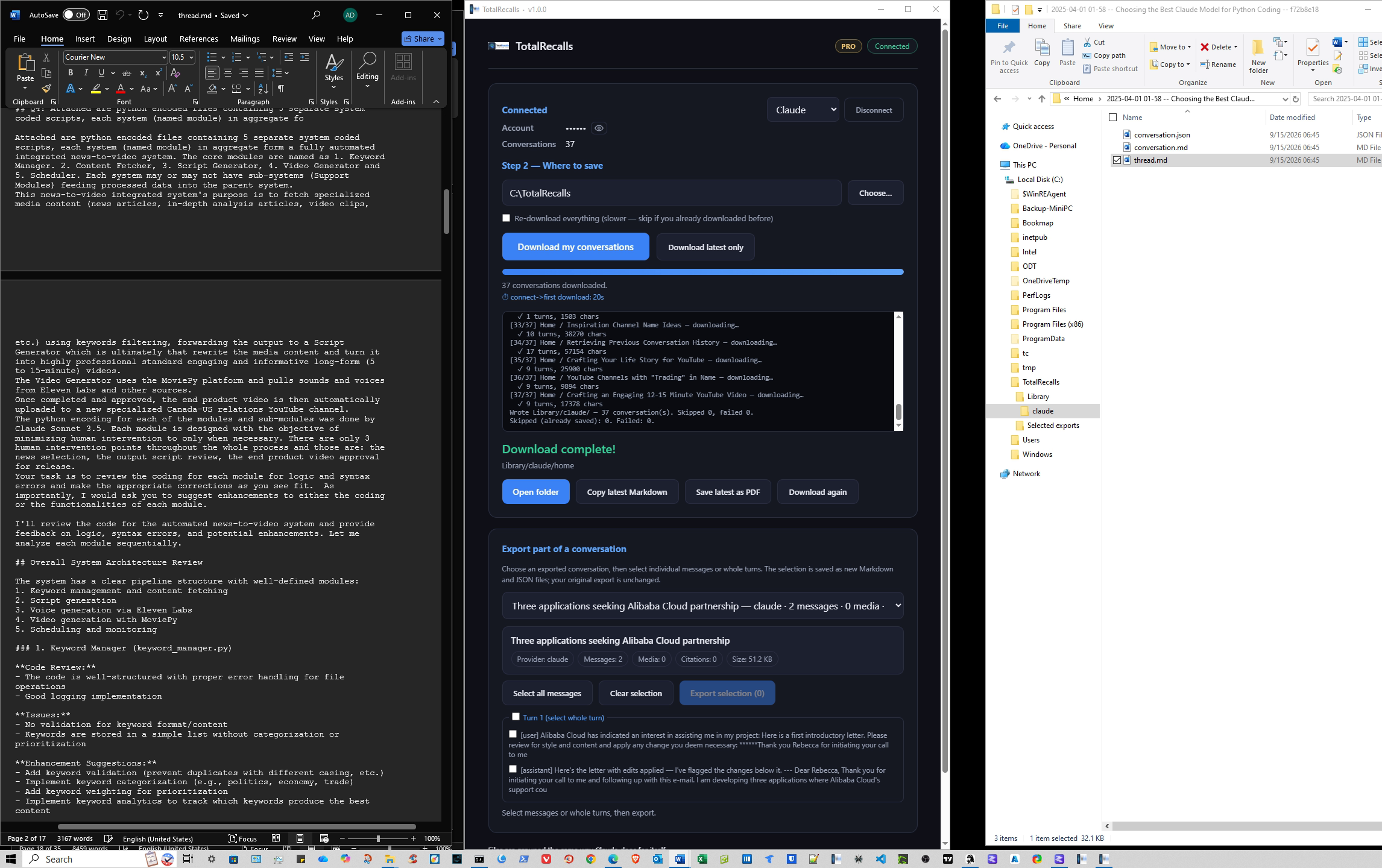
The folder
One Library, with a subfolder for each provider.
The Markdown file
The full conversation in readable text, with headings and code blocks intact.
The JSON file
The same chat as structured data, ready for search or other tools.
These files open without TotalRecalls. Copy them, back them up, or search them like any other document on your PC.
C:\TotalRecalls\Library\mistral\MDJSON●Saved locallyRun the same download on your own chats
The Free Tier includes ChatGPT, Claude, and Perplexity, with up to 5 conversations each. You don't need a card or an account.
Windows 10 and 11. Certified and distributed through the Microsoft Store — one-click install, no security warnings.
Want every provider and no download cap?
Compare Free and Pro →Show transcript
The recording has no audio, so there's nothing to transcribe — this is the sequence of the walkthrough, with the timecode where each beat happens in the video.
- 0:03 — Start on the website. The landing page and official Microsoft Store installation.
- 0:10 — Microsoft Store install. Certified Microsoft Store release with zero security prompts.
- 0:27 — App launch. The app opens cleanly from your Start menu with zero configuration required.
- 0:47 — The app opens on Free. The provider list shows what the Free Tier covers; Mistral needs Pro.
- 1:12 — Activate Pro. Mistral is outside the Free Tier's three providers, so the demo unlocks Pro first.
- 1:25 — Select Mistral and connect. Choose Mistral, sign in inside the app, and land on the connected state.
- 1:47 — Download. This account has 3 conversations; the app writes each one and reports the count as it goes.
- 2:31 — The files. The same chat as Markdown, then as JSON, opened from the exported folder in Word.
- 2:54 — Smart Search Engine (SSE). The SSE add-on walkthrough: search across your local AI archives in plain English.